Magixpro.com

5 Best Headphones

If you're out and about listening to your portable MP3 player or rocking out at home to your high-end stereo, your choice of headphones is critical. Here is hand picked five most favorite  headphones  across every style and category. If you already know which type of headphones you want, be sure to check back regularly (or subscribe to our regular feed updates by email) .


Klipsch Image S4 In-Ear Headphones (Black) 
The Klipsch Image S4 earphones offer up sound quality on par with and better than sets that cost many times as much; they are a spectacular choice for anyone looking for new earbuds.
Price: $72.98 - $99.99 

Shure SE535 Sound Isolating Earphones
Anyone looking for ultracompact headphones with top-notch sound quality should consider the Shure SE530 Sound Isolating Earphones. This set will cost you a pretty penny, but it'll be worth it.
Price: $438.95 - $499.99 


Aiaiai TMA-1 Professional DJ Monitoring Headphones
The sleek TMA-1 headphones by Aiaiai are ideal for traveling DJs who need tough headphones with an up-front, bass-slamming sound profile.
Price: $199.00


Bose QuietComfort 3
With the QuietComfort 3s, Bose has done a remarkable job of shrinking its popular noise-canceling headphones while achieving similarly impressive sound quality--but that engineering feat doesn't come cheap.
Price: $309.00 - $349.95


Koss PortaPro Headphones 
Koss hit a home run with the PortaPros. Love or hate the design, there's no denying the sound quality here: they're the ideal companion for mobile audiophiles and home theater enthusiasts.
Price: $35.18 - $49.00

Apple - The new iPad (2012)

Magixpro Quality Rating
Apple just release  the new iPad, with the stunning Retina display. It makes the things you care about look more brilliant than ever before. 
Starting at $499 only. So what's specific features you can expect from this iPad? Let's see....


Breakthrough Retina Display.

In order to create a display with four times the pixels, we had to design it in a completely new way. You see, every pixel in a display has multiple signals telling it when to light up. But when you have a lot of pixels and a lot of signals on the same plane, signals get crossed and image quality suffers. To make sure everything on the new iPad looks crystal clear, Apple engineers elevated the pixels onto a different plane — separating them from the signals. It’s technology that’s breakthrough. Just like the new iPad itself.


Everything you do with iPad, you do through its large, beautiful display. And when the display is better, the entire iPad experience is better. The Retina display on the new iPad features a 2048-by-1536 resolution, 44 percent greater color saturation, and an astounding 3.1 million pixels — in the same 9.7-inch space. That’s four times the number of pixels in iPad 2 and a million more than an HDTV. Those pixels are so close together, your eyes can’t discern individual ones at a normal viewing distance. When you can’t see the pixels, you see the whole picture. Or article. Or game. In ways you never could before.


It’s all in the lenses.

Megapixels matter. But the quality of a photo is determined by other things, too — like the camera’s optics, image signal processor, and software. The iSight camera uses advanced optics to give you the best picture possible. With an Æ’/2.4 aperture and a five-element lens, it captures light efficiently to produce a sharper overall image. And the hybrid infrared filter — typically reserved for expensive SLR cameras — keeps out harmful IR light for more accurate, uniform colors.

Battery life spared

The new iPad features a Retina display with four times the pixels of iPad 2 and quad-core graphics. How much of an effect does that have on battery life? Almost none. You still get up to 10 hours of power to read, watch, play, write, and create whatever you want, all you want.

iPad as a personal hotspot.

Now for the first time, you can share the high-speed data connection on your iPad. If your carrier supports it, iPad can act as a personal hotspot for connecting up to five devices — such as a MacBook Air, an iPod touch, or another iPad — over Wi-Fi, Bluetooth, or USB.
Talking is the new typing
Write an email. Send a text. Search the web. Or create a note. And do it all with only your voice. Instead of typing, tap the microphone icon on the keyboard. Then say what you want to say while your iPad listens. Tap Done and, just like that, your spoken words become written words. Dictation also works with third-party apps, so you can do things like update your Facebook status or share a thought on your Twitter feed.

Your content. On all your devices

iCloud stores your music, photos, apps, mail, contacts, calendars, documents, and more and wirelessly pushes them to all your devices.4 So if you buy a song, take a photo, or edit a calendar event on your iPad, iCloud makes sure it appears on your Mac, iPhone, and iPod touch, too. You don’t have to do a thing.

Every iPad comes with one year of hardware repair coverage and 90 days of telephone technical support. AppleCare+ for iPadextends repair coverage and technical support to two years and adds accidental damage protection for your iPad.


If you wanna buy this, you should visit -> http://store.apple.com/us/browse/home/shop_ipad/family/ipad

Convert Files into Different Formats, just Using your Email


To get started, you need to forward the input (source) files to a specific email address like format@zamzar.com  where format represents the file type of the desired output format.

For instance, if you have a Word document that you want to convert to PDF, you can send the file as an email attachment to pdf@zamzar.com. If you have a PDF file that you want to convert into an ebook, the corresponding conversion address would be epub@zamzar.comor mobi@zamzar.com depending on your ebook reader.
Here’s a complete list of input-output file formats that are currently supported by Zamzar. You can convert documents, presentations, ebooks, videos, audio files, archives and more.
In my test, the converted files were delivered quickly and the quality of the converted files was impressive. There’s no need to create any account at Zamzar and you can convert files up to 1 MB in a single batch. You may go for a pro account to convert bigger files that starts from $7 per month.


NOTE: 
Zamzar, a popular tool for converting files online, has added a new option that lets you convert files by email itself. You can forward your email attachments directly to Zamzar, without downloading them to the desktop, and they’ll be converted in no time.

One more thing. You can only upload files by email and initiate the conversion process but you’ll still have to visit the Zamzar website to download the converted file. It stays on Zamzar servers for about a day and their download page is actually very confusing when accessed on a mobile phone.

Convert your Wired Printer into Wireless one


More new printers these days are network enabled so you can just attach them to your home network using the Ethernet port (or over Wi-Fi) and print from any other computer in the home network. However, if you are using an old USB based printer, you can use a wireless print server to turn that wired printer into a wireless one. 
Wireless print servers are small devices (they look like mini routers) that have a USB port. You just have to connect the printer to this wireless print server using a regular USB cable and the printer will then become available to all other computers in your wireless network.
Here’s an overview of some of the most popular wireless print servers:
netgear wireless print servernetgear - print over wireless network 
Netgear WGPS606 – This is both a wireless print server and a wired router.  It has two USB ports so you may use the device for sharing up to two printers over the wireless network. The same print server can also help you connect four different computers to the network even if they are not fitted with wireless network adapters. Costs around $60.
Linksys Print Server – This wireless print server from Cisco makes it easy to access all the functions of your all-in-one printer over the wireless network.  The Print Server can connect most USB based multifunction printers to your network using an Ethernet cable or Wireless-G. The print function works like any other print server but for scanning or copying, a user can request exclusive use of that function until his task is complete. Costs around $80.
HP Wireless Kit – If you like to turn your wired HP printer into a wireless one, the HP Wireless Printing Kit could be a good choice as it integrates fully with all features of your printer, including print, scan, and fax. It comes with a USB transmitter that you need to insert into the computer for wireless printing. The advantage is that you can print wirelessly even if you don’t have a wireless network. Requires Windows and costs around $75.
If you don’t have a wireless network at your place, you can consider getting a Bluetooth adapter for your printer. You need to attach the Bluetooth dongle to your computer and print wirelessly though the range will obviously be limited. Check your printer manufacturer’s site if they provide a Bluetooth adapter for your printer model.

Should You Buy a Wireless Print Server?

Before you invest in a wireless print server for your printer, consider this.
Today, most multifunction printers include wireless capabilities and can therefore connect directly to your wireless network without any additional hardware. Some of these printers are available in the $100 range. With this in mind, does it make more sense to purchase a new printer instead of buying a wireless print server for your existing printer? 
Practical Scenarios:
If your current printer is relatively new and you paid more than $100 for it, then it may be more economical for you to simply purchase a wireless print server instead of purchasing an entirely new printer with the same features.
  • If a wireless printer in not available in your area, you can buy a regular USB based wired printer and get someone to ship you a wireless print server. This would incur less shipping costs than ordering a wireless printer.
  • Some wireless print servers can be used as wireless routers. If you do not have a wireless router at your place, you can opt for a wireless print server as it will not only turn your printer wireless but you also get to setup a wireless home network.

How can I measure or test my internet speed ?


What does the ADSL speed test measures ?

The ADSL speed test provides results taking as reference data download speed in the user PC, since the latter receives more information that it is sent when surfing the internet. Technically, the possibilities gathered by the ADSL speed test are measured by the elapsed time when the user starts downloading a file (TC=getTime()), and when it finishes downloading, taking into account the size -in bytes- of the package sent. ADSL speed is measured by the quotient resulting from the time and the size of the package sent. For the test to measure the data properly, it will be necessary that the PC in which is performed the test is only using nothing other than a web browser with internet connection. Moreover, it is recommended to close all tabs and web browsers containing other websites. It's always advisable to perform the test with the highest amount of available resources, essential when tested in a LAN with other PCs using broadband


Getting accurate results in a broadband test can be tricky!
There's more than meets the eye when performing an ADSL speed test. Whenever you measure your DSL or ADSL broadband speed, you have to take into consideration that packets travel through broad band. 
The test must also take into consideration the technology used to deliver these packets and the variants that may fluctuate in your ADSL speed. To get results as accurate as possible, our internet test was developed with the most sophisticated speed test techniques by using servers spread throughout the world so that the speed test could be as consistent as possible when users surf the web. 
When it comes to preparing our speed test, since the test design must be clear and user-friendly, we also need to consider the presentation and accuracy of the results provided.


How is the upload speed of my ADSL connection measured?
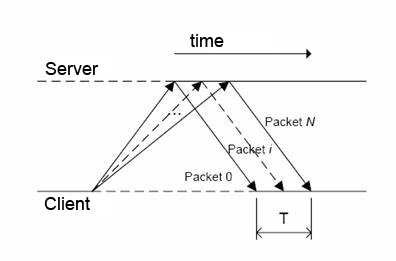
To perform an ADSL upload test, we use a default amount of UDP packets of uniform size at a rate slightly higher than the nominal tested ADSL. In order to perform a test with a slightly higher rate than the one that is recommended by the default, it is necessary to saturate the broadband test. 
The processes in our servers dedicated to test ADLS speed, return an echo of the packets sent as they reach the server. The time difference, T, is measured between the arrival from the first to the last packet the user receives.


How is the download speed of my ADSL connection measured?
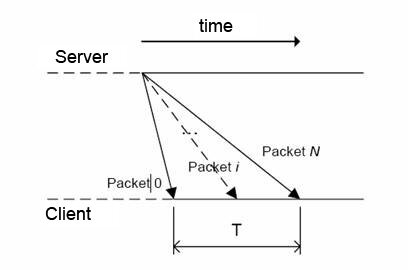
A server traffic generator is reserved for the speed test, generating download traffic for ADSL users. It is a process specifically designed to receive that kind of information, measuring the arrival time of packets. Given the nature of ADSL connection (where download speed is much greater than upload) the client cannot create an echo of the packets sent. In this case it is used the same user PC to measure the download speed of the ADSL user.


NOTE:
Remember that the result of the speed test does not reflect your actual connection speed. When performing a speed test on an ADSL line, we have to take into consideration the distance from our ADSL line to the ADSL central. Therefore, the speed shown will not always represent 100% the speed of your connection. For 1mbs connections the average download speed is 800kbps whereas the upload speed is 220kbps, for 2mbs 1600-1700 kbps for download and so on and so forth for this type of connection. For 20mbs connection, the actual speed provided in UK does not go over 43% of the flow, that's why a connection offering 8500kbps can be considered better that an average one.

G-mail: Focus on What's Important


Priority Inbox can help save you time if you’re overwhelmed with the amount of email you get. It attempts to automatically identify your important incoming messages and separates them out from everything else. Gmail uses a variety of signals to prioritize your incoming messages, including who you’ve emailed and chatted with most and which keywords appear frequently in the messages you opened recently.
When you click the Priority Inbox navigation link on the left-hand side of your mail, you’ll see messages grouped in three sections: Important and unread, Starred, and Everything else.
If Priority Inbox mistakes an email as important or doesn't flag one that’s important to you, you can teach it to make better selections. Just select the message in question, and click the “mark as important” or “mark as not important” button; they’re the buttons with plus and minus icons just to the left of the Move to and Labelsdrop-down menus. 
When you mark a message as not important, it will move out of the Important section. Over time Priority Inbox will learn what’s important to you and incorporate the feedback you give via these buttons.

The Priority Inbox segregates Gmail into three different categories: "Important and Unread", "Starred", and "Everything Else". Gmail automatically filters incoming e-mail into either "Important and Unread" or "Everything Else", while the middle category is populated by those messages that have been flagged for future reference.
The process of filtering messages into the "Important and Unread" folder is similar to the concept of spam filtering, but in reverse. Google has developed an algorithm for Gmail which predicts whether or not a message is important based on a variety of criteria. Contacts you frequently e-mail, and message threads that you typically open or reply to are assumed to be higher priority. The best part, though, is that messages can be flagged as important or marked as unimportant to help Priority Inbox learn and improve over time.

41-MP camera smartphone

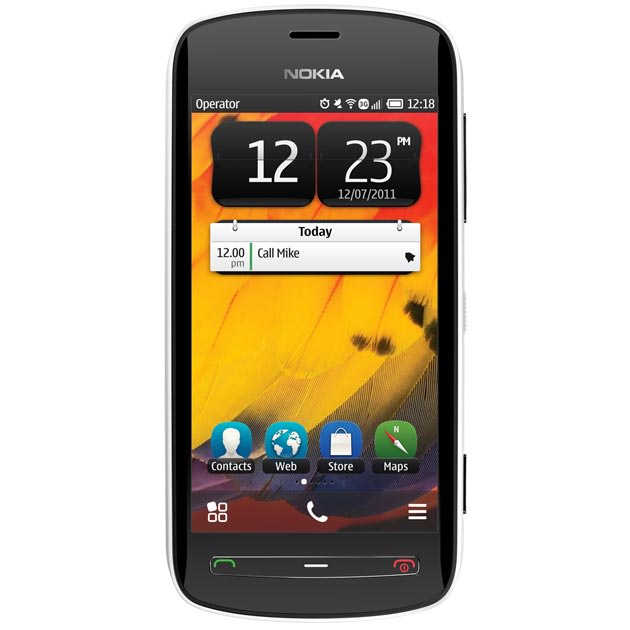
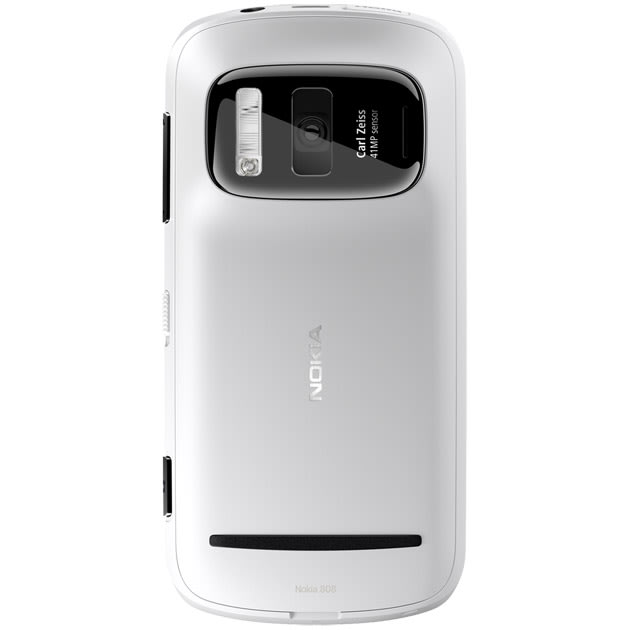
At the Mobile World Congress in Barcelona, Nokia announced the 808 Pureview, a flagship Symbian device with a 41-megapixel camera. In addition to superior still imaging technology, the Nokia 808 PureView, also includes full HD 1080p video recording and playback with 4X loss less zoom and the world's first use of Nokia Rich Recording.


The new smartphone, which was announced at the Mobile World Congress in Barcelona, is expected to launch in Europe in May, The Telegraph reports.
With 41 MP, the phone is able to shoot images that Nokia claims can be printed in "poster size".
Files, however, condense four or five pixels into one, and Nokia claims they are smaller than equivalent products from rivals.
A Carl Zeiss lens shoots in continuous focus HD video, at 1080p.
Mary McDowell, the firm's executive vice president for mobile phones, said the company's engineers had been working on the product "for years".
She said it was "natural" to assume that its technology would be used in other Nokia products in the future.
McDowell added that while the device was larger than its rivals, it was still sized to fit in pockets, rather than replace a full-size camera.
According to the report, the device uses a 1.3GHz processor, comes with 16GB of storage and runs a 4" screen at 360 x 640, which is below HD resolution.

Twitter Delicious Facebook Digg Stumbleupon Favorites More